
Overview
Plugins bundle skills, app integrations, and MCP servers into reusable workflows for Codex.
Extend what Codex can do, for example:
- Install the Gmail plugin to let Codex read and manage Gmail.
- Install the Google Drive plugin to work across Drive, Docs, Sheets, and Slides.
- Install the Slack plugin to summarize channels or draft replies.
A plugin can contain:
- Skills: reusable instructions for specific kinds of work. Codex can load them when needed so it follows the right steps and uses the right references or helper scripts for a task.
- Apps: connections to tools like GitHub, Slack, or Google Drive, so Codex can read information from those tools and take actions in them.
- MCP servers: services that give Codex access to additional tools or shared information, often from systems outside your local project.
More plugin capabilities are coming soon.
Use and install plugins
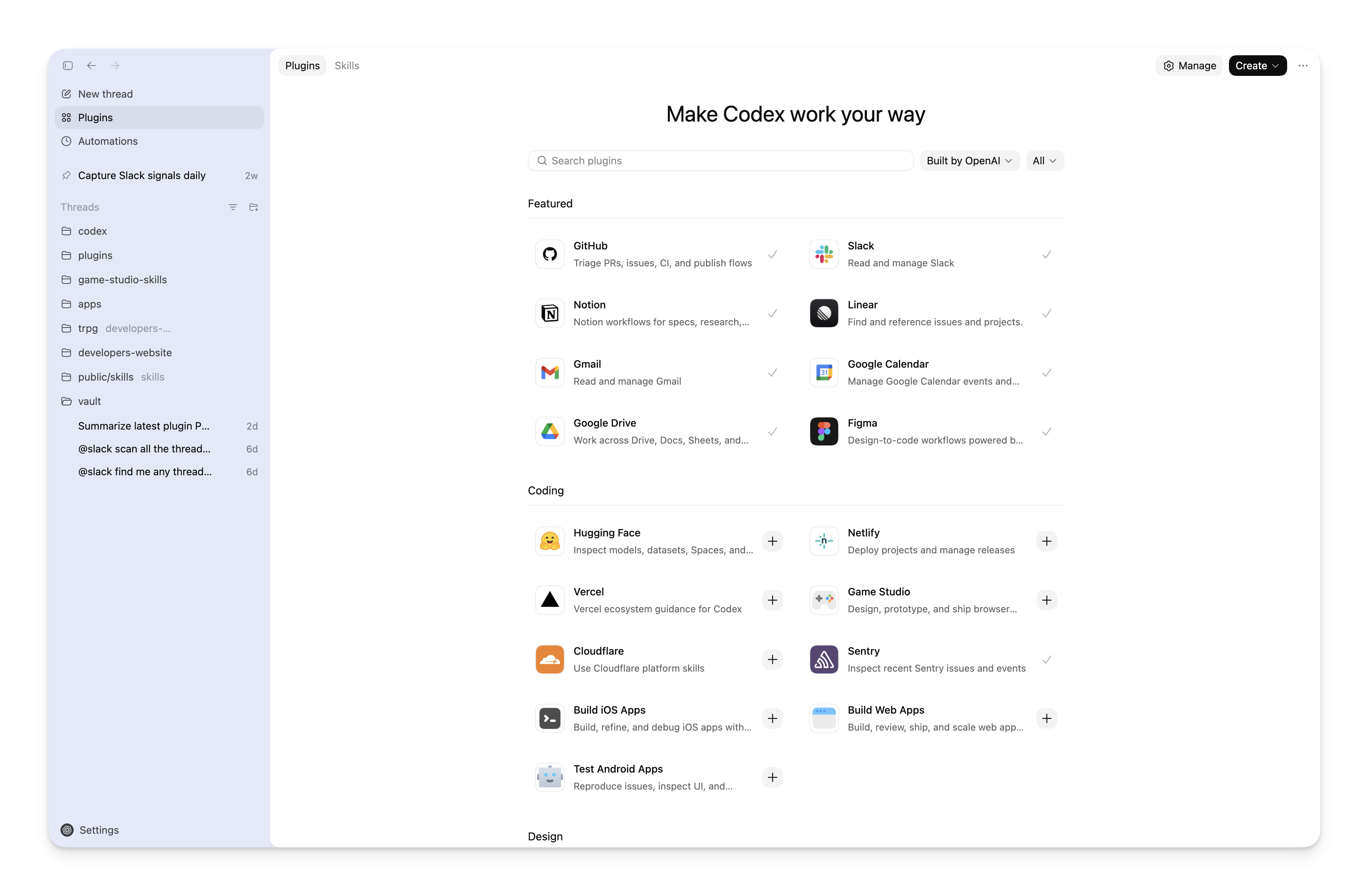
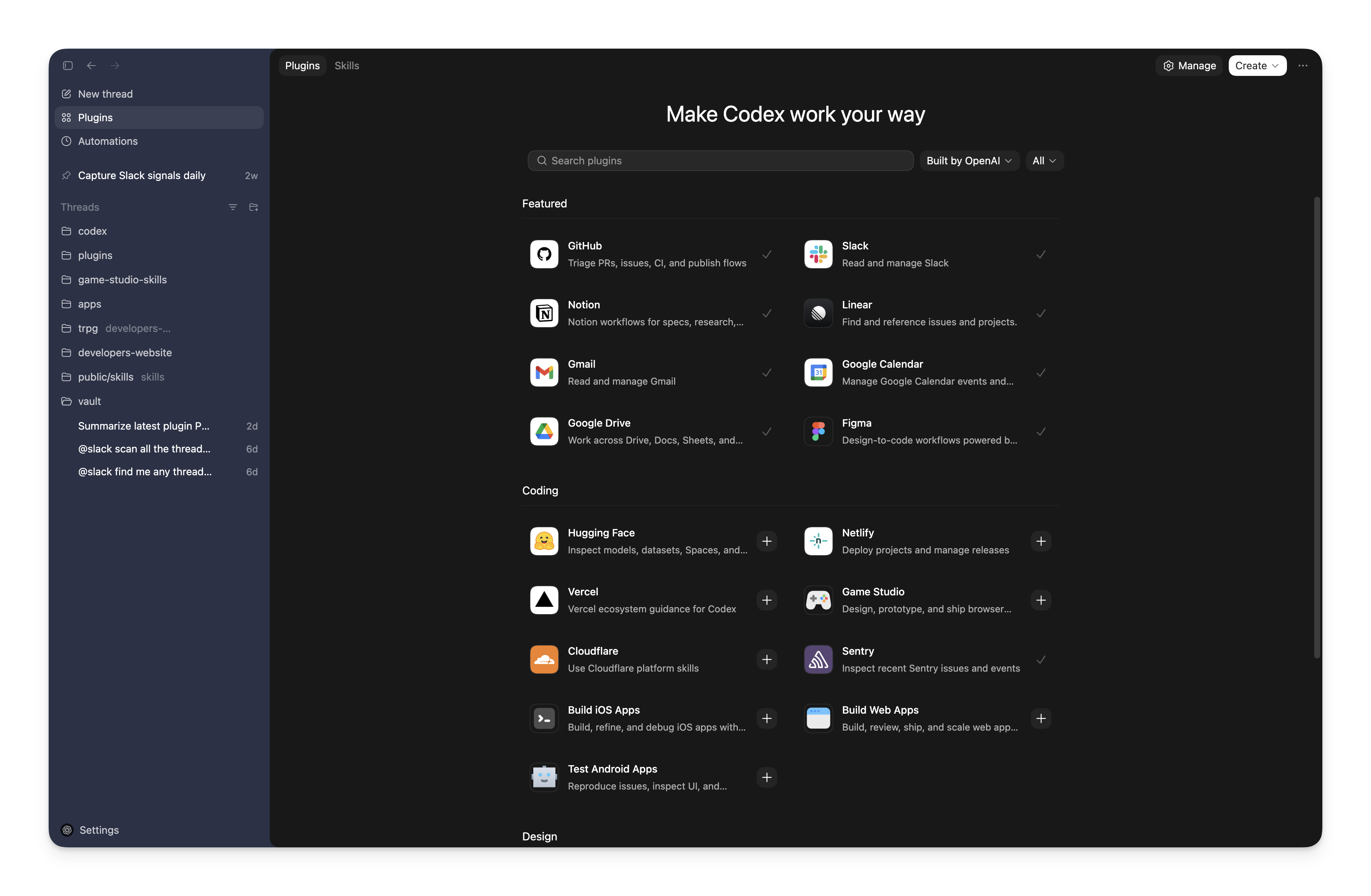
Plugin Directory in the Codex app
Open Plugins in the Codex app to browse and install curated plugins.
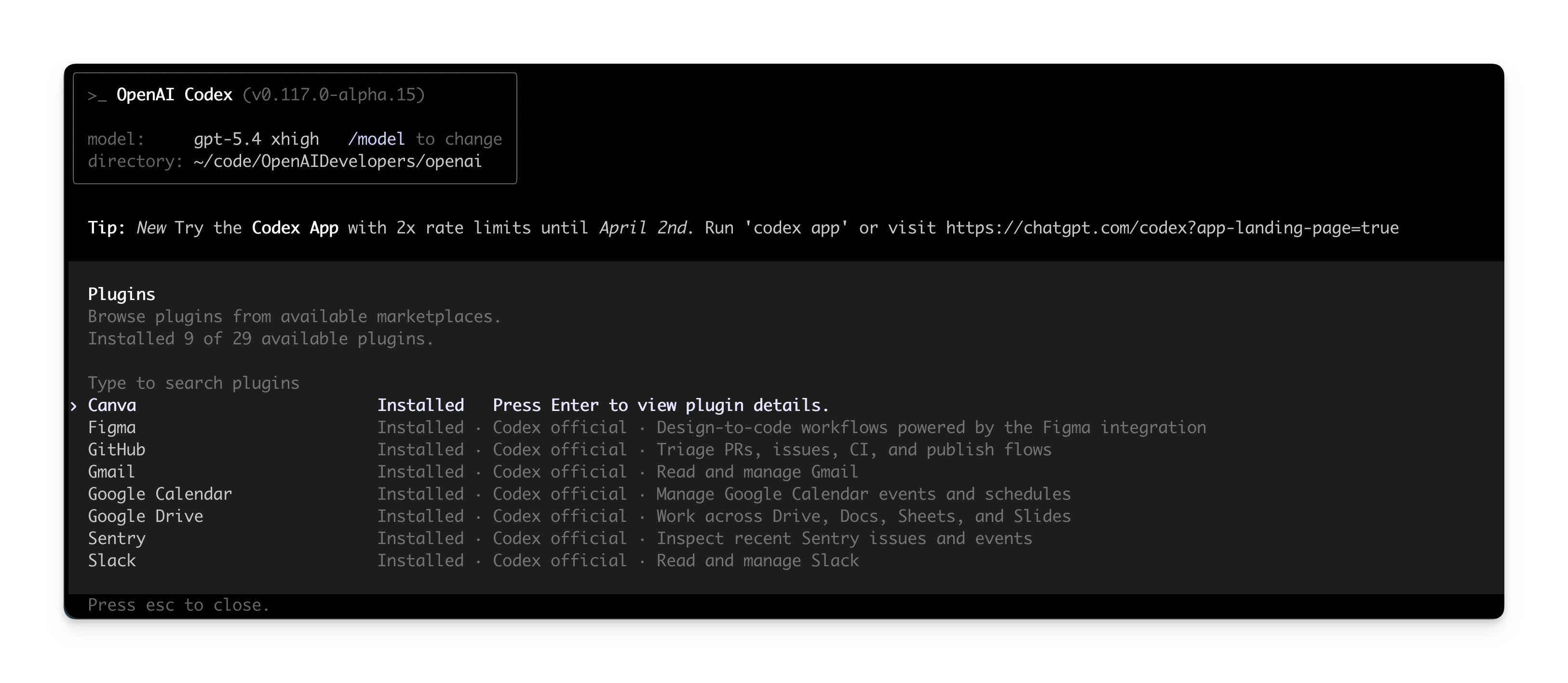
Plugin directory in the CLI
In Codex CLI, run the following command to open the plugins list:
codex
/plugins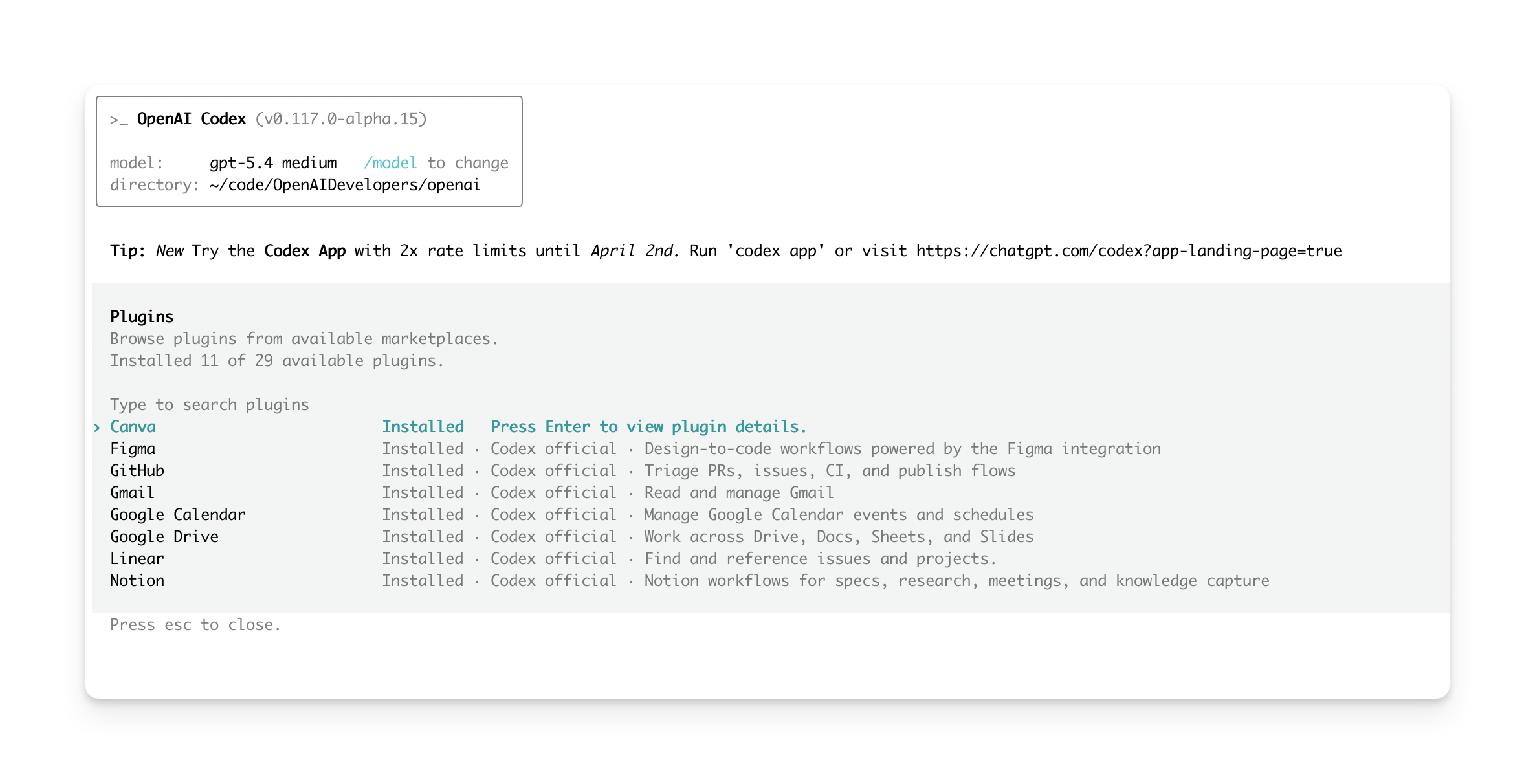
Install and use a plugin
Once you open the plugin directory:
- Search or browse for a plugin, then open its details.
- Select the install button. In the app, select the plus button or
Add to Codex. In the CLI, select
Install plugin. - If the plugin needs an external app, connect it when prompted. Some plugins ask you to authenticate during install. Others wait until the first time you use them.
- After installation, start a new thread and ask Codex to use the plugin.
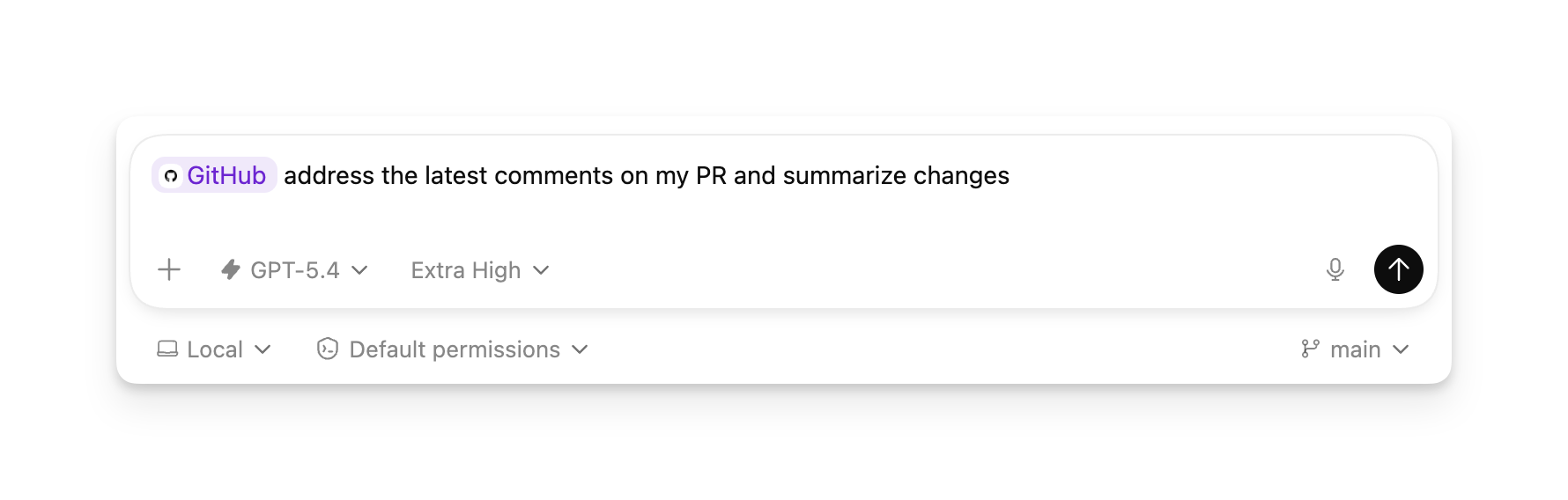
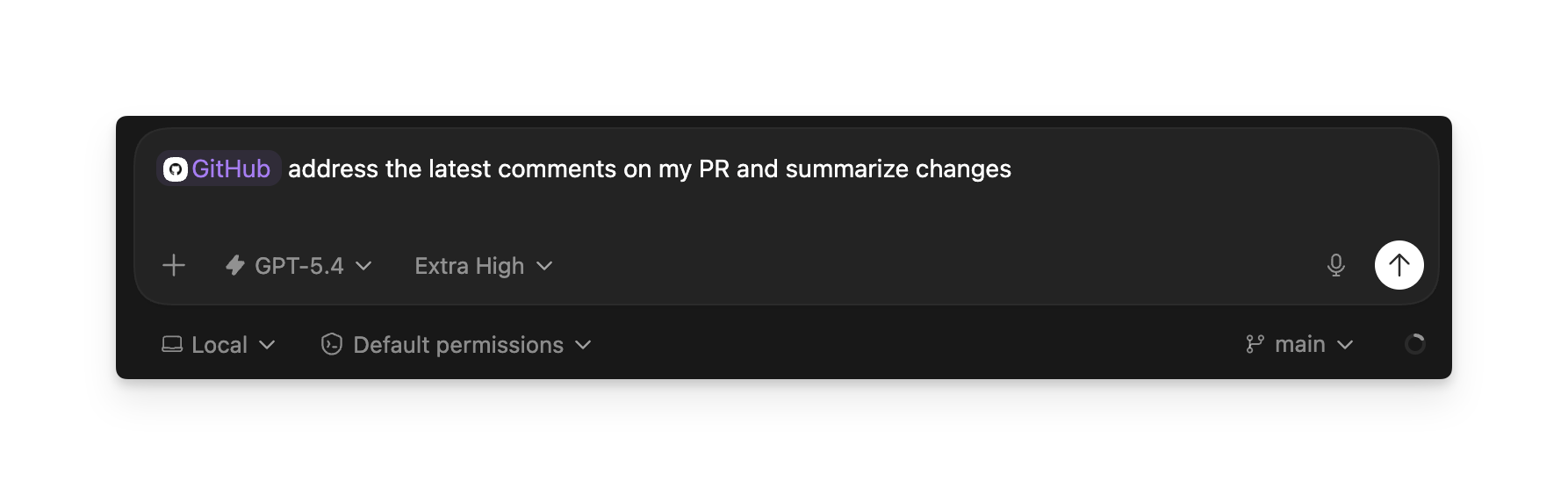
After you install a plugin, you can use it directly in the prompt window:
Describe the task directly
Ask for the outcome you want, such as “Summarize unread Gmail threads from today” or “Pull the latest launch notes from Google Drive.”
Use this when you want Codex to choose the right installed tools for the task.
Choose a specific plugin
Type @ to invoke the plugin or one of its bundled skills
explicitly.
Use this when you want to be specific about which plugin or skill Codex should use. See Codex app commands and Skills.
How permissions and data sharing work
Installing a plugin makes its workflows available in Codex, but your existing approval settings still apply. Any connected external services remain subject to their own authentication, privacy, and data-sharing policies.
- Bundled skills are available as soon as you install the plugin.
- If a plugin includes apps, Codex may prompt you to install or sign in to those apps in ChatGPT during setup or the first time you use them.
- If a plugin includes MCP servers, they may require additional setup or authentication before you can use them.
- When Codex sends data through a bundled app, that app’s terms and privacy policy apply.
Remove or turn off a plugin
To remove a plugin, reopen it from the plugin browser and select Uninstall plugin.
Uninstalling a plugin removes the plugin bundle from Codex, but bundled apps stay installed until you manage them in ChatGPT.
If you want to keep a plugin installed but turn it off, set its entry in
~/.codex/config.toml to enabled = false, then restart Codex:
[plugins."gmail@openai-curated"]
enabled = false
Build your own plugin
If you want to create, test, or distribute your own plugin, see Build plugins. That page covers local scaffolding, manual marketplace setup, plugin manifests, and packaging guidance.